THE CBG CLUB
Moody Pastel Preset
Moody Pastel Preset
Couldn't load pickup availability
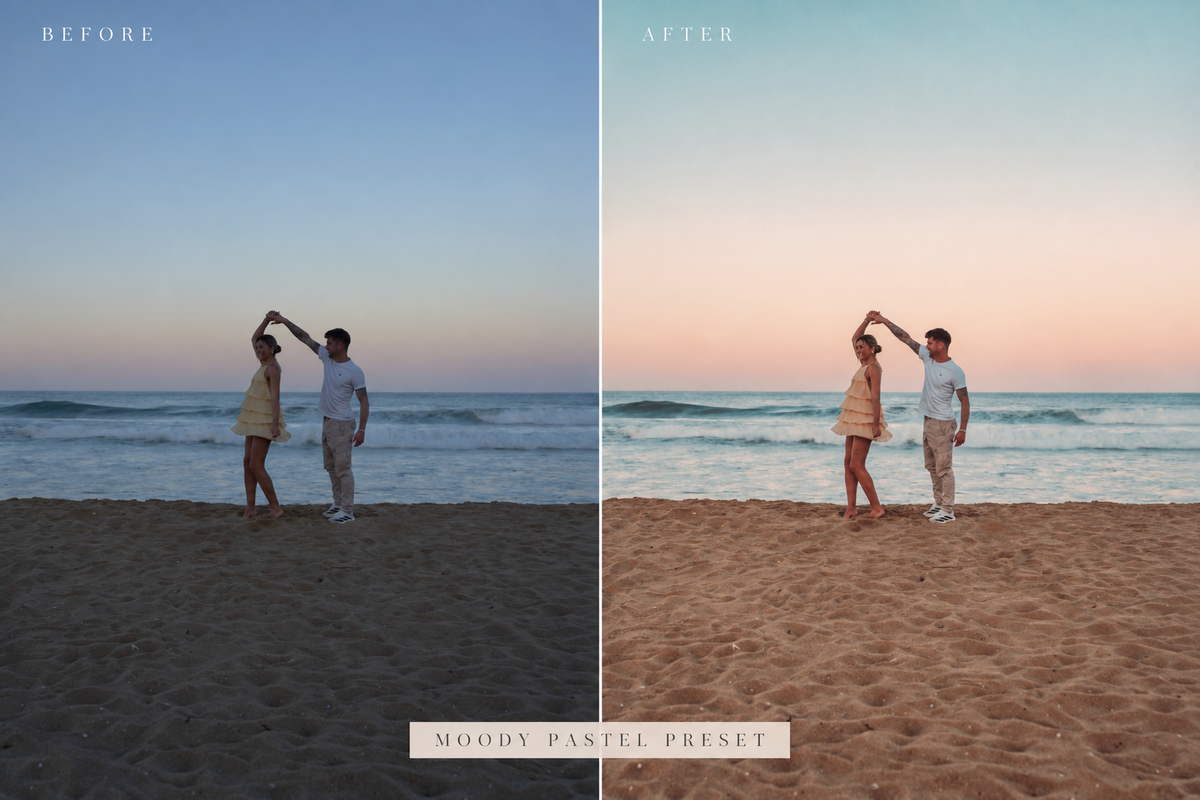
A soft, dreamy preset designed to give your photos a more muted, cinematic feel. It shifts harsh blues into beautiful turquoise tones, especially in the sky and water, while adding subtle warmth and softness throughout the scene.
Perfect for beach days, travel, golden hour and lifestyle photos when you want that effortless, dreamy look.
How to Add Your XMP Preset to Lightroom Mobile 📱
1. Download the preset
Download the .XMP preset file to your phone. If it comes as a ZIP file, unzip it first.
2. Open Lightroom Mobile
Open the Lightroom app and go to All Photos.
3. Import the preset
Tap the + button → Add from Files and select your .XMP file.
4. Create a preset
Open the imported file, tap the three dots (•••) → Create Preset.
5. Name & save it
Give your preset a name (e.g. Moody Pastel) and save it to your preferred preset group.
6. Use it!
Open any photo → Presets → find your preset → tap it to apply. ✨
💡 Important: Lightroom Mobile's exact import options can vary slightly between iPhone and Android. If your .XMP file doesn't appear when choosing a file, import a photo that has the preset settings applied and create a preset from that photo instead.
How to Upload Your XMP Preset to Lightroom
1. Download the preset
Download the .XMP preset file to your computer.
2. Open Lightroom
Open Lightroom Classic or Lightroom on your desktop.
3. Import the preset
Go to Develop → Presets → + → Import Presets.
4. Select your XMP file
Find the .XMP file you downloaded and click Import.
5. Find your preset
Your preset will now appear in your Presets panel, ready to use! ✨
Tip: If you downloaded a ZIP file, unzip it first — you want to import the .XMP file itself.
Share